Ozon Product Assistant User Guide
An illustrated guide to license activation, Ozon product collection, Excel batches and workbook enrichment.
Installation
Install the extension
- Use desktop Chrome 137 or later.
- The store link will appear after publication. If you already have extension files from the developer, open
chrome://extensions, enable Developer mode, select Load unpacked, and choose the supplied folder.
Open the side panel
- Open or refresh an ozon.ru list or product page.
- Click the extension icon in Chrome, then select 打开商品采集面板 (Open the collection side panel). You can also use the floating controls on the product page.
Activate and renew
Activate a key
- Contact the developer for a key. Confirm pricing, term and support terms before buying. Collection requires a paid license key.
- Open License management from the popup, side panel or batch workspace. Paste the key, review and accept the data disclosure, then select Activate.
- When you see Active and the expiry date, return to your workspace to collect.

Renew or replace a key
Contact the developer to renew. Select Revalidate after an extension, or Replace key for a new key. Existing results remain available for viewing and export after sign-out. Contact support for a binding reset if you change browsers or reinstall.
Collect in the side panel
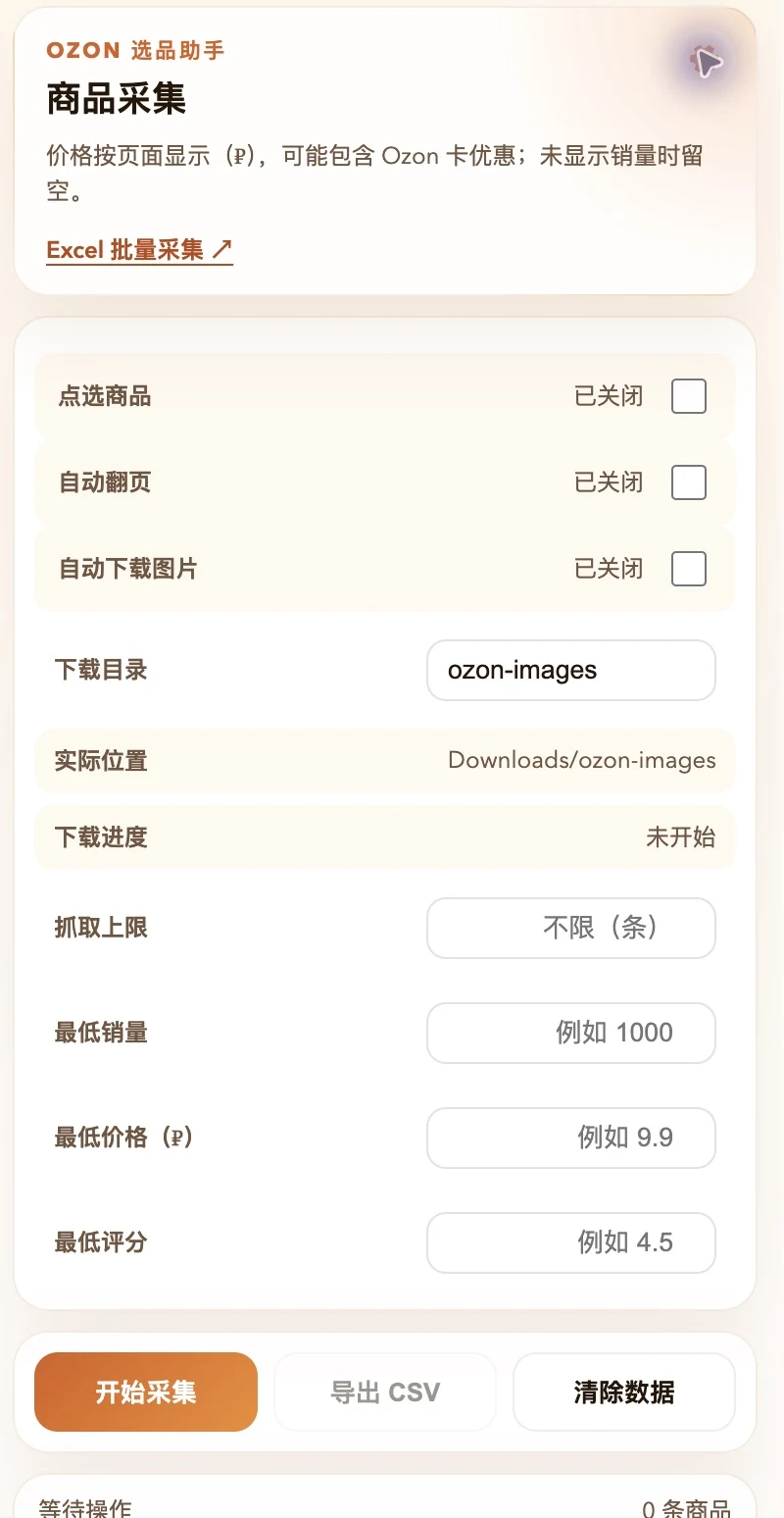
- On a search, category or seller list, open the side panel and collect. To choose individual items, enable Point-and-pick in settings, click cards, and press Esc to finish.
- To review one item, open its detail page and collect. Copy the detected fields, primary image links or summary from the panel.
Filter, paginate and save images
Set the minimum price in roubles, rating and sales, then export CSV from the list panel. Enable automatic pagination and set a limit to collect more pages. Automatic image downloads use the chosen subfolder of your browser downloads.
Excel batch collection
Import a spreadsheet
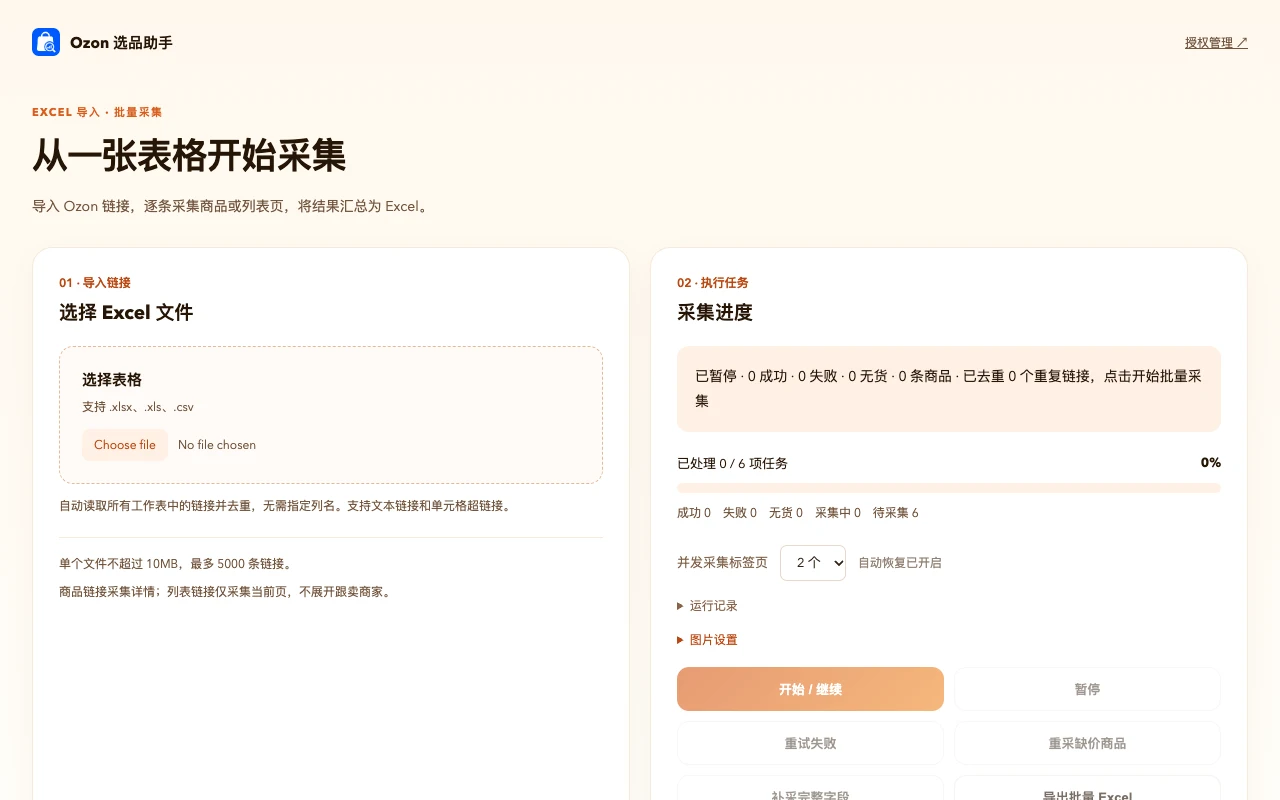
- Select Excel batch collection in the side panel, then choose an .xlsx, .xls or .csv with ozon.ru links. The limits are 10 MB and 5,000 deduplicated links.
- Text URLs, cell hyperlinks and static HYPERLINK formulas are supported. Check the task count and source sheets. Export existing results before replacing a batch.
Run, pause and retry
Choose one to three collection tabs and select Start / Continue. Check completed, failed and unavailable tasks. You can pause and resume or retry failures. If Ozon asks for verification, complete it in the collection tab before resuming. List links collect the current page.
Enrich and export
Export batch results
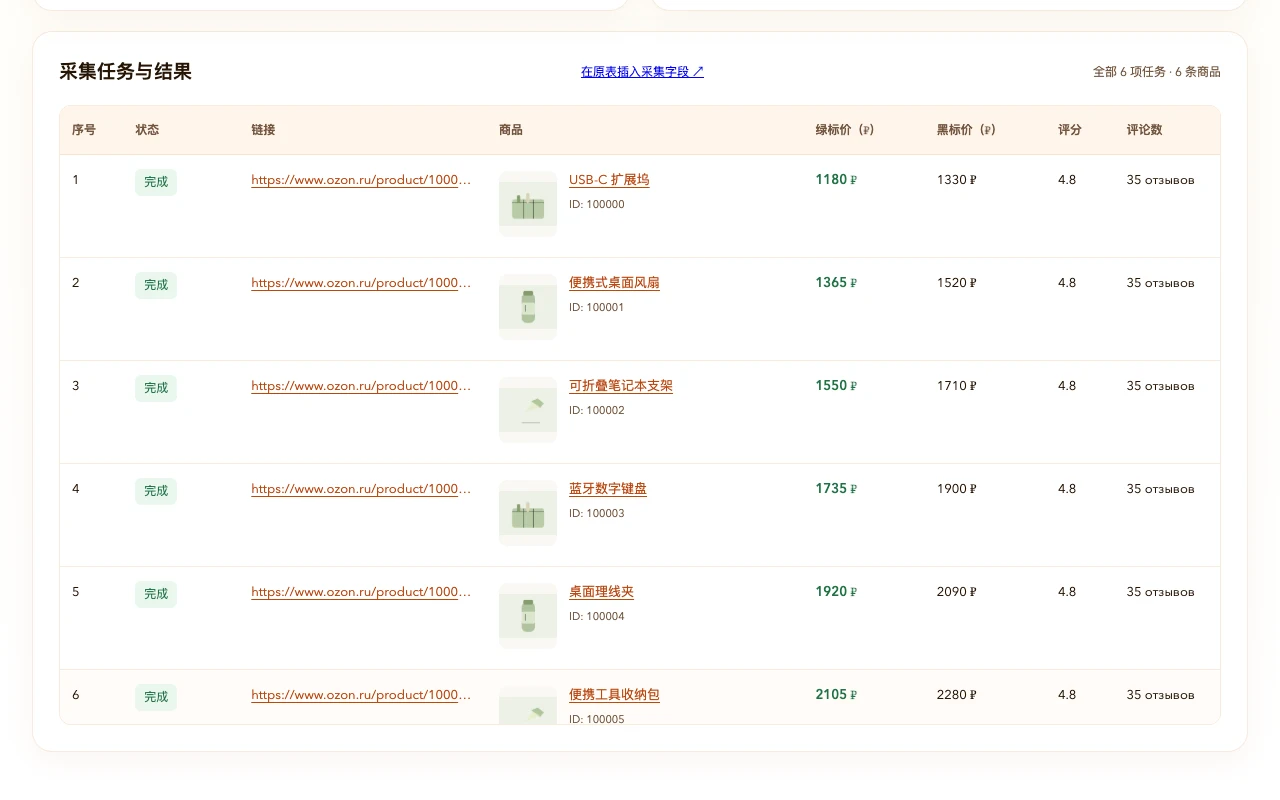
In the batch workspace, select 导出批量 Excel (Export batch Excel). To include pictures, enable 图片嵌入 Excel (Embed images in Excel) and set the number of images per product.
Append fields to the workbook
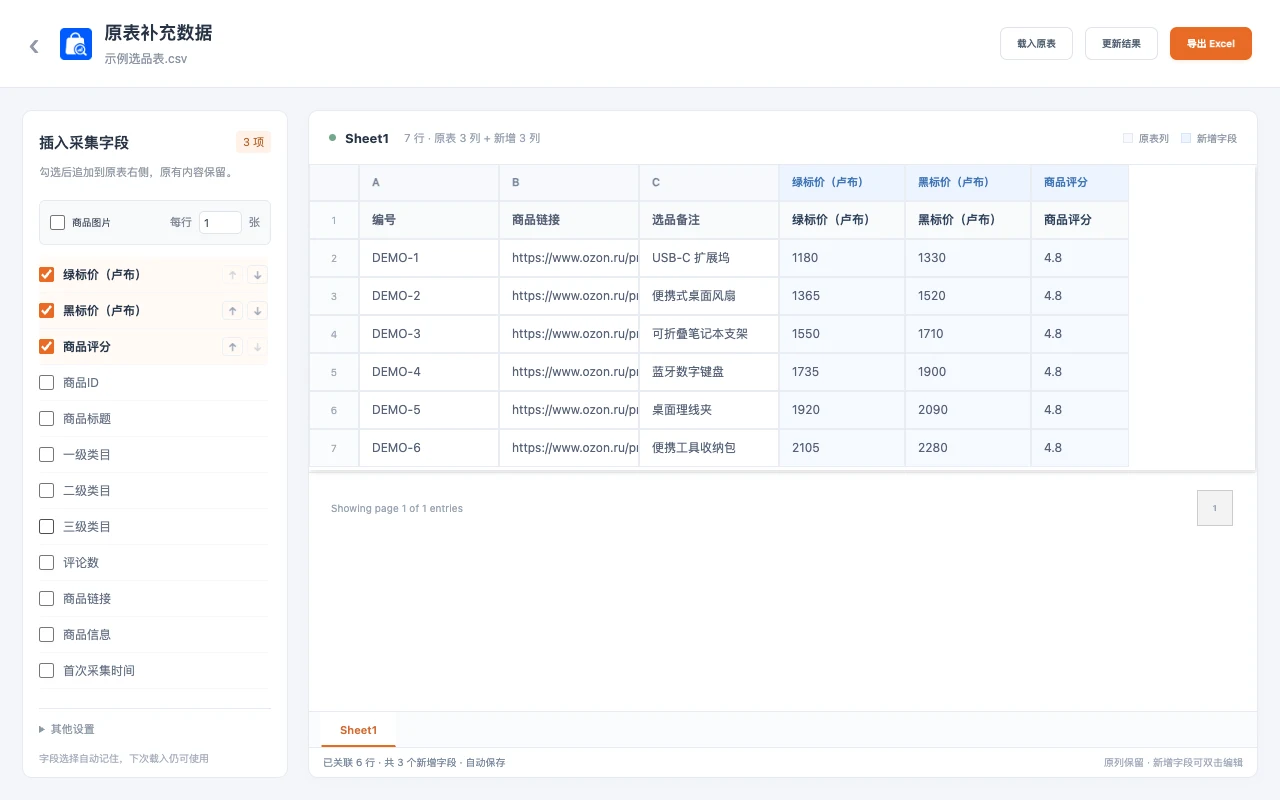
- Select 在原表插入采集字段 (Insert collected fields into original workbook) to open the workbook workspace.
- Select fields such as Ozon Card price, non-card price and rating. Adjust field order and image count, preview the columns on the right, then export a copy. Matching links can populate multiple source rows.
- Review the exported copy for complex workbook formatting. .xls and .csv sources export as .xlsx. Verify important prices, missing fields and images on the source page.
Troubleshooting
- License failed or paused a batch?
- Check your connection, key, expiry and binding. After revalidating, return to the workspace and select Start / Continue.
- Why did no links import?
- Check for ozon.ru product or supported list URLs. Convert dynamically constructed links to complete URLs before import.
- Why are some prices or images blank?
- Card and non-card prices depend on what the source page displays. Check page loading, regional settings and image availability.
Controls and fields
Expand a group to look up buttons, settings and exported fields.
Collection and list controls8 entries
Operate these controls after opening the side panel on a product page. List and detail views expose different actions.
Floating launcher / Start collection
- Purpose
- Access extension actions directly on the source page.
- Behavior and settings
- Expand the floating icon. Open side panel opens the panel; Start collection queues a current-page collection command for it.
- Example
- Use it from a category you are browsing, then inspect panel status.
- Effects and limits
- Unsupported or not-yet-loaded pages may have no launcher. This does not start background whole-site collection.
Open side panel / Open collection panel
- Purpose
- Keep collection controls and results beside the source page.
- Behavior and settings
- Use the floating page entry or the extension toolbar entry. The popup offers quick preferences; the side panel shows full results. Check the active marketplace after switching tabs.
- Example
- Open the panel beside a category list to compare source cards with collected records.
- Effects and limits
- Opening the panel does not make every page recognizable or create an Excel batch.
Settings / Collection settings
- Purpose
- Configure collection mode, filters and image downloads.
- Behavior and settings
- The top-right gear expands or collapses preferences. Inputs and switches apply individually; collapsing preferences does not erase results.
- Example
- Leave automatic tasks off for an initial small collection, then adjust the needed controls.
- Effects and limits
- List-only filters and selection may be hidden in detail view. The toolbar popup contains only a subset of the full side-panel settings.
Start collection
- Purpose
- Read recognizable, loaded product cards on the current supported page.
- Behavior and settings
- A normal manual read replaces the list with current-page results. Pagination reads merge with the existing list and deduplicate links. A running read is not started again.
- Example
- Let one page load, then click once. Export a previous list first if you need to retain it.
- Effects and limits
- This is not a whole-site search or cloud task. Unloaded cards, strict filters or an unavailable source can return zero. The button is disabled during point-and-pick.
Status / Product count
- Purpose
- Distinguish collection, completion, filtering and errors.
- Behavior and settings
- A count such as 12/40 means 12 visible records out of 40 held records. CSV exports the visible selection. Read the status text as well as the count.
- Example
- If the count drops after changing minimum rating, check whether it reports visible versus total records.
- Effects and limits
- Product count is neither sales volume nor page count. One product in detail view can contain many fields.
Select a result card
- Purpose
- Match a side-panel record with its source-page product.
- Behavior and settings
- Clicking a list card attempts to locate and highlight that product on the current page. Use the source page’s own product link when you want to enter its detail page.
- Example
- Locate a source card when checking an unexpected price.
- Effects and limits
- This operates on the current page. Navigation, virtualized lists or removed cards may prevent a match.
Export CSV
- Purpose
- Save the currently visible, filtered list as a text spreadsheet.
- Behavior and settings
- The button generates UTF-8 CSV with one visible product per row and separate data columns. Images are URLs. The control is disabled for zero records; detail view uses copy actions instead.
- Example
- Filter by rating, export your shortlist and import it using UTF-8 with comma separation.
- Effects and limits
- CSV embeds no images and preserves no Excel formatting or source workbook. Hidden records are excluded. Import long IDs as text to avoid scientific notation.
Clear data / Clear detail
- Purpose
- Empty current panel results before another collection.
- Behavior and settings
- Clears the list or detail and resets its filters. Exported files, downloaded images and persistent preferences are not all deleted. Enabled automatic tasks may repopulate results.
- Example
- Export CSV before clearing. Turn automatic tasks off first if you want collection to stop.
- Effects and limits
- Do not use the panel as a backup recovery mechanism. Ozon batches and source workbooks are managed separately.
Every collection preference10 entries
Unless stated otherwise, these configure the manual side-panel list. Filters generally change visibility; they do not supply data absent from the source.
Point-and-pick
- Purpose
- Collect only cards you deliberately select, suitable for a small manual shortlist.
- Behavior and settings
- Enable it and click source cards repeatedly. New selections appear first; selecting the same link again moves it to the front. Turn it off to restore normal clicks. Whole-page collection is disabled while it is active.
- Example
- Pick three candidates instead of collecting every card on a page.
- Effects and limits
- Filters can still hide selected products. Selected items may trigger enabled image downloads. This is not a site-wide checkbox selection.
Automatic pagination
- Purpose
- Visit further products on supported lists with less manual navigation.
- Behavior and settings
- Attempts Next, waits for loading and merges the next read into existing records with deduplication. Stops when no next control is found or the collection limit is reached. Detail view turns list pagination off.
- Example
- Collect the first page, set a small limit, then enable pagination. Turn it off and inspect results when finished.
- Effects and limits
- A recognizable Next or Load more control must exist. Enabling pagination cannot repair an unsupported page. Stop on verification or access restrictions.
Automatically download images
- Purpose
- Send collected image URLs to Chrome for saving.
- Behavior and settings
- Off initially. Enabling waits for another collection. List reads use visible products; detail reads use parsed main images. Editing a filter alone does not download all earlier images.
- Example
- Leave off for text research. Enable after checking the shortlist and folder, then run a collection.
- Effects and limits
- May create many files and requests. Picked items have their own trigger path, so do not assume a filtered-out selection cannot download. Check Chrome Downloads for final file status.
Download directory
- Purpose
- Choose a subfolder beneath the browser download directory.
- Behavior and settings
- Defaults to ozon-images. Enter a relative folder such as research/session-a and finish editing. Invalid path characters are normalized; blank input restores the default.
- Example
- Use research/session-a to separate one collection’s files from other work.
- Effects and limits
- This cannot write to an arbitrary absolute system path. Changing it affects future downloads and does not move or rename existing files.
Actual location
- Purpose
- Preview the destination implied by the folder preference.
- Behavior and settings
- For example, Downloads/research/session-a. This read-only label follows Download directory.
- Example
- Look for the indicated subfolder, then verify individual files in Chrome Downloads.
- Effects and limits
- Downloads describes the browser destination convention, not a guaranteed system folder; your browser configuration still controls its download root.
Download progress
- Purpose
- See whether image work started and how many requests succeeded, failed or were skipped.
- Behavior and settings
- Off means disabled; Waiting means no new trigger. Skips can reflect deduplication or download history. Investigate failures in Chrome and at the source.
- Example
- If collection worked but no files appeared, check for skipped requests and inspect Chrome Downloads.
- Effects and limits
- Image counts differ from product counts. Some panel versions count accepted download requests, so Completed alone does not prove every file finished writing. Clearing products does not clear download history.
Collection limit
- Purpose
- Set a product-count stopping condition for list pagination.
- Behavior and settings
- Blank or 0 means no limit. List reads are capped before display filtering; pagination stops when the unfiltered count reaches the limit. This does not cap Ozon Excel batches or enforce a hard limit on picked items.
- Example
- With limit 100 and minimum rating 4.5, pagination may stop at 100 raw records even if only 20 pass the rating filter.
- Effects and limits
- Counts products, not pages, files or images. Lowering the limit cannot recover previously omitted records. TEMU can return more than the threshold in one read.
Minimum sales
- Purpose
- Hide list products whose displayed sales value is below a threshold.
- Behavior and settings
- Enter a non-negative number; blank disables the condition. Recognized k/thousand and similar units are normalized. Unrecognized sales participate as 0.
- Example
- At threshold 1000, a recognized 1.2k can pass; products with no displayed sales may disappear.
- Effects and limits
- No private sales database is queried. Reviews are not sales. Source labels can represent monthly, cumulative or approximate values; verify their meaning.
Minimum price (₽)
- Purpose
- Set a lower displayed-price threshold to exclude cheaper candidates.
- Behavior and settings
- Accepts non-negative decimals. Compares the recognized page number in roubles, without currency conversion. Blank disables it; missing prices may be treated as 0 and excluded.
- Example
- At threshold 10, 8.5 is hidden and 12 can remain. This does not select products priced below 10.
- Effects and limits
- Not a maximum price, cost price or delivered total. Check coupons, memberships and variants. All active thresholds must pass together.
Minimum rating
- Purpose
- Hide lower-rated list products to narrow manual review.
- Behavior and settings
- Accepts 0–5 with 0.1 increments; out-of-range input is clamped. Blank disables filtering. Missing ratings compare as 0.
- Example
- With 4.5, a 4.4 is hidden while 4.5 and 4.8 can pass; combine with sales if useful.
- Effects and limits
- Compares displayed rating only, without adjusting for review count or authenticity. High scores based on few reviews can still pass.
Detail-view copy functions8 entries
Open a supported product detail page for parsing, or use Reparse detail. These actions copy text or links and do not place orders.
Reparse detail
- Purpose
- Read the current product again instead of appending to a list.
- Behavior and settings
- Rebuilds the title, pricing, rating, description, store and image view. Detail mode shows one product and hides list filters and CSV.
- Example
- Reparse after selecting a variant or allowing the page to finish loading, then compare with the source.
- Effects and limits
- Only currently loaded content is parsed. Async sections or variant prices may lag. Detail view replaces the list view, so export a needed list first.
Product title: click to copy
- Purpose
- Copy the recognized title on its own.
- Behavior and settings
- Click the marked title area to write text to the clipboard. Status reports success; select text manually if copying fails.
- Example
- Paste a title into your research notes as a search reference.
- Effects and limits
- Keeps the page language without translating, rewriting or assessing trademark rights.
Price: click to copy
- Purpose
- Copy the displayed price and any recognized original price.
- Behavior and settings
- The price section copies combined text, including an original price only when recognized. Ozon batch dual prices have dedicated fields.
- Example
- Compare with your own costs while retaining currency and offer conditions.
- Effects and limits
- Not a checkout quote. Shipping, tax, account offers, quantity and variants can change the payable amount.
Ratings and sales: click to copy
- Purpose
- Copy recognized rating, review count and sales information together.
- Behavior and settings
- Click the section to copy available values. Missing metrics are not estimated.
- Example
- Record review volume alongside rating when evaluating a candidate.
- Effects and limits
- Reviews, product sales and store sales are distinct and cannot substitute for verified transaction data.
Single image / Copy all links
- Purpose
- Copy main-image URLs into your own records.
- Behavior and settings
- Click a thumbnail for one URL, or Copy all links for newline-separated recognized URLs. Use download settings when files are needed.
- Example
- Copy one thumbnail URL for a reference, or all links for the recognized gallery.
- Effects and limits
- Copies URLs rather than files or usage rights. Sources may restrict or expire links. Long description images, videos and every variant image are not guaranteed.
Product description: click to copy
- Purpose
- Copy recognized features or description as text.
- Behavior and settings
- Click the description area. Recognized separated content is displayed as lines; unavailable content stays missing.
- Example
- Copy material or size information into an internal checklist and verify it at source.
- Effects and limits
- Does not validate claims, invent missing specifications or guarantee every collapsed section is included.
Store information: name and link
- Purpose
- Keep visible seller information for source checking.
- Behavior and settings
- Click the marked area to copy the store name; open a store link separately when present. Other visible metrics appear only when recognized.
- Example
- Record seller name and source link to distinguish sellers of the same brand.
- Effects and limits
- Not a backend seller verification. Missing store information is not filled with a recommended product’s seller.
Copy summary
- Purpose
- Copy the main recognized detail fields in one action.
- Behavior and settings
- Combines title, link, prices, metrics, store information, description and image URLs as multiline text.
- Example
- Paste a product summary into your research document, then add your own assessment.
- Effects and limits
- A summary combines current parsed fields only. It is neither an Excel file nor a verified factual report.
Ozon: every Excel batch control14 entries
Independent from manual side-panel collection. Panel thresholds, pagination limits and image switches do not automatically become batch options.
Excel batch entry
- Purpose
- Run a queue of Ozon links from a spreadsheet with configurable concurrency.
- Behavior and settings
- Open the separate workspace from the panel or popup for imports, task states and results. Unselected computer files are not read.
- Example
- Use a batch when you already have a spreadsheet of many product links.
- Effects and limits
- Available only in Ozon. Opening the workspace does not replace an existing batch.
Choose spreadsheet: xlsx / xls / csv
- Purpose
- Find product, search, category or seller links across worksheets.
- Behavior and settings
- Maximum 10MB and 5,000 deduplicated links. Reads URL text, hyperlinks and static HYPERLINK formulas. Deduplicates product IDs or list URLs, excludes non-Ozon links and asks before replacing a batch.
- Example
- A product repeated in two rows can be collected once and later linked back to both source rows. Check task count and URLs after import.
- Effects and limits
- Concatenated formulas are not calculated; convert them to URLs. New imports replace tasks and results. List URLs cover the current page only, without pagination or seller expansion.
Start / Continue
- Purpose
- Run pending tasks or resume a paused queue.
- Behavior and settings
- Creates or reuses one to three collection tabs according to the batch setting. Disabled without pending work. The batch can continue after the workspace is closed.
- Example
- Start after checking the import. Chrome restarts restore running batches. Resume paused batches from the workspace.
- Effects and limits
- Avoid manually navigating the collection tab. Starting does not prove success. Side-panel filters do not reduce this queue.
Pause
- Purpose
- Stop queue advancement while keeping results for later resumption.
- Behavior and settings
- Marks the batch paused and returns the in-progress task to pending. Stale in-flight results are not committed to the new run; resuming can reread the interrupted item.
- Example
- Pause before shutting down, inspecting an error or addressing source verification.
- Effects and limits
- Not an export, deletion or media-job stop. Requests already sent cannot be retroactively removed.
Retry failures
- Purpose
- Requeue failed tasks only.
- Behavior and settings
- Available with failed tasks while not running. Changes failed items to pending and starts execution; does not rerun every success or unavailable item.
- Example
- Use after restoring connectivity for links that failed to load.
- Effects and limits
- Persistent source restrictions can still cause failure. This is not a full-batch refresh; avoid repeated aggressive retries.
Recollect products without prices
- Purpose
- Repair older completed details missing both price fields.
- Behavior and settings
- Targets completed detail tasks with neither green nor black price and requeues them. Disabled while running.
- Example
- Use for an old completed title with both prices blank; use Retry failures for tasks actually marked failed.
- Effects and limits
- A record missing only one price does not match. This neither refreshes all prices nor guarantees the source provides both.
Refresh complete fields
- Purpose
- Reparse older detail records with the current field structure.
- Behavior and settings
- Targets completed detail tasks using an older schema. Completed records already on the current structure are not all reread.
- Example
- Use after an upgrade when older details need the newer category or image extraction.
- Effects and limits
- Not a universal fill-every-blank tool. Missing source fields or higher-resolution resources cannot be invented.
Progress / Success / Failed / Unavailable / Pending
- Purpose
- Separate queue progress from successful collection.
- Behavior and settings
- Processed equals successful plus failed plus unavailable tasks. A list task can yield multiple products; task and product counts differ. The results table shows per-task errors.
- Example
- At 100% processed, inspect any failed rows instead of assuming everything succeeded.
- Effects and limits
- Unavailable means the source indicated no purchasable item; recommendations are not substitutes. Check zero-result lists at source.
Images per product
- Purpose
- Limit images used per product in batch exports or downloads.
- Behavior and settings
- The interface offers 1–20, initially 1. Uses the first N recognized images, or fewer if unavailable. The preference is saved locally.
- Example
- Choose 3 for up to three pictures per product; test a small export first.
- Effects and limits
- Does not increase product count or create images missing from old records. Source-workbook enrichment has its own per-row limit.
Embed images in Excel
- Purpose
- Choose whether the batch workbook contains viewable image objects.
- Behavior and settings
- Enabled initially. Embedding fetches and packages images, taking more time and space. Disable it for text and URL fields without embedded pictures.
- Example
- Disable for data analysis; enable when recipients need an offline image workbook.
- Effects and limits
- Independent of Download product images. JPEG/PNG/GIF retain original files where supported; other formats convert to original-dimension PNG. Display scaling does not improve source quality.
Export batch Excel
- Purpose
- Create a new results workbook rather than append to the source file.
- Behavior and settings
- Includes standard product fields, image URLs and image-processing information, plus an export-settings sheet. Embedding follows its switch; tasks without products may produce blank-field rows.
- Example
- Use for a standardized results table; choose source-workbook enrichment to retain original rows, columns and supported formulas.
- Effects and limits
- The current standard workbook is not a full task audit export: not every displayed state, error or source row is exported as a column. Inspect the workspace for diagnosis.
Download product images
- Purpose
- Save batch images separately as local files.
- Behavior and settings
- Uses the per-product count and recognized URLs, saving beneath Downloads/ozon-images. Shows progress and failed-image records.
- Example
- Download images from existing results without recollecting or generating an image workbook.
- Effects and limits
- Does not use the side-panel custom directory and does not require embedding. Duplicate URLs can be deduplicated. Source availability and rights still apply.
Stop image job / Failed-image records
- Purpose
- Interrupt image downloading or image workbook generation and inspect errors.
- Behavior and settings
- Stop is available during media work. Error records identify product/image failures; exported workbooks can also include image-processing information.
- Example
- Stop if volume or connectivity is unsuitable, reduce image count and retry.
- Effects and limits
- Different from pausing collection. Completed downloads remain. An interrupted export may produce no final workbook; saved files are not retracted.
Clear tasks and results
- Purpose
- Remove the current batch and stop its collection before a new dataset.
- Behavior and settings
- Confirmation clears tasks, results and the associated source file. Disabled while a media job is busy.
- Example
- Export needed results before confirming that this batch can be removed.
- Effects and limits
- No recycle-bin recovery is promised. Templates, drafts and downloaded files are not all erased; see the Privacy Policy.
Ozon: original-workbook enrichment controls11 entries
Append selected fields to the right of a source workbook. Original preview columns are read-only; appended fields have a separate local edit draft.
Enrich original workbook / Back to batch
- Purpose
- Associate existing results with original rows instead of rebuilding the table.
- Behavior and settings
- Open from batch results. The saved source restores automatically; Back returns to the batch. Repeated source links match each row and rows without links remain.
- Example
- Two source rows referring to one deduplicated product can both receive its results.
- Effects and limits
- Appends new columns without overwriting originals. Multiple products in one row combine text and use the row gallery’s first N images.
Load source workbook / Choose Excel file
- Purpose
- Attach a source for an older batch or match results to another file containing the same links.
- Behavior and settings
- Accepts xlsx/xls/csv up to 10MB. Matches existing results locally without recollecting. Loading another source resets manual enrichment overrides and source-width preferences.
- Example
- For an older batch lacking a saved source, choose the original file and inspect matched-row count.
- Effects and limits
- This changes the enrichment source, not the collection queue. Different links do not automatically acquire results. Export manual edits before replacing the file.
Choose appended fields
- Purpose
- Select which result fields appear as new columns on the right.
- Behavior and settings
- Checkboxes update preview immediately. Unchecking removes an appended column only. Choices persist locally; exporting requires at least one selected field.
- Example
- Select product ID and both prices for a compact price-review workbook.
- Effects and limits
- Selectable fields are not guaranteed populated. Unchecking does not remove identically named original columns or recollect data.
Move up ↑ / Move down ↓
- Purpose
- Arrange appended columns left to right.
- Behavior and settings
- Moves among selected fields only. Top-to-bottom field order maps to left-to-right appended order and persists. Boundary arrows are disabled.
- Example
- Put product ID first, prices next, then title and pictures.
- Effects and limits
- Does not move source columns, reorder the collection queue or sort products by price.
Product images / N per row
- Purpose
- Append image columns for each original row.
- Behavior and settings
- Enable images and choose 1–20 per row. Missing slots remain blank; preferences persist. Picture columns are read-only and thumbnails link to source images.
- Example
- For a row containing multiple links, 3 per row means up to three from its combined gallery, not three for every link.
- Effects and limits
- Separate from batch images per product. More columns increase export size; setting 20 cannot create images absent from an old record.
Refresh results
- Purpose
- Rematch the latest locally saved batch results with the source workbook.
- Behavior and settings
- Reloads local state and rebuilds preview. For the same batch/source, manual overrides continue to take precedence in edited appended cells.
- Example
- After batch refresh completes, use this control to inspect updated prices or images.
- Effects and limits
- Does not visit Ozon to recollect live data. Edited values are not automatically reset by refreshing.
Double-click appended cells to edit
- Purpose
- Correct or supplement appended text and numbers before export.
- Behavior and settings
- Original columns, headers and image columns are read-only. Appended text is editable; price and rating fields accept non-negative numbers or blanks. Edits save as a local draft.
- Example
- After checking a price manually, correct its appended value and retain your verification evidence separately.
- Effects and limits
- Does not write to Ozon or change the original batch record. Manual input is not extension-verified; overrides can persist after refresh.
Other settings: discard manual edits
- Purpose
- Remove manual overrides and use the associated collected values again.
- Behavior and settings
- Clears all manual enrichment overrides and rebuilds preview. This is not a one-step undo.
- Example
- Export an archive before discarding all manual corrections for the source.
- Effects and limits
- Does not clear the batch, change original columns or delete exported files. No step-by-step redo history is promised.
Sheet tabs / Pagination / Column width
- Purpose
- Navigate large multi-sheet sources and improve readability.
- Behavior and settings
- Bottom tabs select worksheets. Pagination limits preview rows, not export rows. Drag column boundaries to resize; widths persist locally.
- Example
- Inspect matches across three worksheets and widen a long title column.
- Effects and limits
- Viewing page one does not limit export to page one. Uniform preview styling does not fully reproduce every complex source format.
Matched rows / Appended field count / Autosave
- Purpose
- Check matching coverage and the selected layout.
- Behavior and settings
- Matched rows counts source rows associated with results in the current sheet. Appended count includes selected data and picture columns. Autosave applies to a local draft.
- Example
- If 60 of 100 rows match, inspect remaining links for missing results, invalid URLs or another batch.
- Effects and limits
- Autosave does not create an exported file or a cloud backup.
Export Excel / Stop
- Purpose
- Save a new xlsx containing original content plus selected appended fields.
- Behavior and settings
- Preserves source sheets, formulas and formatting supported by the library, then appends selected data and pictures. Stop interrupts generation; the completed file has an enriched-data name.
- Example
- Check field order, matches and edits before exporting. Test complex source files on a copy.
- Effects and limits
- Complex xlsx features are not guaranteed lossless; xls/csv convert to xlsx. The original disk file is not overwritten and earlier downloads are not retracted.
Ozon manual CSV columns9 entries
These nine columns belong to the side-panel CSV. Use batch Excel or source enrichment for dual prices, categories and collection timestamps.
Product identifier · sku
- Purpose
- Ozon product identifier recognized in the manual list.
- Behavior and settings
- Saved as the first manual CSV column, without adding the complete batch fields.
- Example
- Cross-check against the product link and retain it as text.
- Effects and limits
- Not a seller inventory code or order ID; can be blank.
Store · store
- Purpose
- Store text recognized in the manual list.
- Behavior and settings
- Exported separately and may be blank; the panel does not provide a separate store-filter setting.
- Example
- Check the seller text against the product source.
- Effects and limits
- Not seller verification or a backend seller ID.
Product title · title
- Purpose
- Recognized source title for searching and distinguishing records.
- Behavior and settings
- A separate list-CSV column populated from currently visible recognized products. Unavailable values can be blank.
- Example
- For example, “Example organizer”, in the source language.
- Effects and limits
- No automatic translation, brand removal or commercial-use verification.
Displayed price · price
- Purpose
- Recognized current page price in its displayed context.
- Behavior and settings
- A separate list-CSV column populated from currently visible recognized products. Unavailable values can be blank.
- Example
- For example 12.50; check currency and conditions at source.
- Effects and limits
- No automatic currency conversion or guarantee of a tax/shipping-inclusive total.
Sales text · sales
- Purpose
- Source sales label used for reference and minimum-sales filtering.
- Behavior and settings
- A separate list-CSV column populated from currently visible recognized products. Unavailable values can be blank.
- Example
- For example “1.2k sold”; verify the time period.
- Effects and limits
- Not an order count estimated from reviews; can be blank.
Rating · rating
- Purpose
- Source product rating used by minimum-rating filtering.
- Behavior and settings
- A separate list-CSV column populated from currently visible recognized products. Unavailable values can be blank.
- Example
- For example 4.6, considered alongside review count.
- Effects and limits
- Not a store rating or reliability-adjusted score.
Review count · comments
- Purpose
- Displayed review count or review-count text.
- Behavior and settings
- A separate list-CSV column populated from currently visible recognized products. Unavailable values can be blank.
- Example
- For example “235 reviews”, retaining its label.
- Effects and limits
- Distinct from units sold and not used to estimate sales.
List image URL · img
- Purpose
- Representative image URL recognized from a product card.
- Behavior and settings
- A separate list-CSV column populated from currently visible recognized products. Unavailable values can be blank.
- Example
- CSV stores an https://… URL; download separately for a file.
- Effects and limits
- Not an embedded image; list thumbnails can be smaller than detail-gallery images.
Product link · link
- Purpose
- Source URL used for checking, association and deduplication.
- Behavior and settings
- A separate list-CSV column populated from currently visible recognized products. Unavailable values can be blank.
- Example
- Retain the link column as text for source checks.
- Effects and limits
- Redirects, removal and regional restrictions can make a link unavailable.
Every Ozon selectable field14 entries
These fields belong to batch Excel and source enrichment. Manual CSV is separate: sku, store, title, price, sales, rating, comments, img and link. It does not export the full batch field set.
Product ID · product_id
- Purpose
- Product identifier for matching results to source links.
- Behavior and settings
- Select this field individually in source enrichment; it also appears in the standard batch results workbook. Appended columns do not overwrite source columns.
- Example
- Keep long numeric IDs as text.
- Effects and limits
- Not an inventory SKU, order number or seller ID.
Product title · title
- Purpose
- Recognized source title for searching and distinguishing records.
- Behavior and settings
- Select this field individually in source enrichment; it also appears in the standard batch results workbook. Appended columns do not overwrite source columns.
- Example
- For example, “Example organizer”, in the source language.
- Effects and limits
- No automatic translation, brand removal or commercial-use verification.
Primary category · primary_category
- Purpose
- Level 1 of the recognized product category path, for grouping.
- Behavior and settings
- Select this field individually in source enrichment; it also appears in the standard batch results workbook. Appended columns do not overwrite source columns.
- Example
- Export hierarchy levels separately rather than as one guessed label.
- Effects and limits
- Missing levels remain blank; recommendation categories are not substituted.
Secondary category · secondary_category
- Purpose
- Level 2 of the recognized product category path, for grouping.
- Behavior and settings
- Select this field individually in source enrichment; it also appears in the standard batch results workbook. Appended columns do not overwrite source columns.
- Example
- Export hierarchy levels separately rather than as one guessed label.
- Effects and limits
- Missing levels remain blank; recommendation categories are not substituted.
Tertiary category · tertiary_category
- Purpose
- Level 3 of the recognized product category path, for grouping.
- Behavior and settings
- Select this field individually in source enrichment; it also appears in the standard batch results workbook. Appended columns do not overwrite source columns.
- Example
- Export hierarchy levels separately rather than as one guessed label.
- Effects and limits
- Missing levels remain blank; recommendation categories are not substituted.
Green price (RUB) · green_price_rub
- Purpose
- Green price recognized from actual bank/card-offer labels.
- Behavior and settings
- Select this field individually in source enrichment; it also appears in the standard batch results workbook. Appended columns do not overwrite source columns.
- Example
- For example 2581 in RUB; inspect separately from black price.
- Effects and limits
- A struck-through original price is not automatically the black price; missing labels can leave blanks.
Black price (RUB) · black_price_rub
- Purpose
- The other displayed price recognized from its matching source label.
- Behavior and settings
- Select this field individually in source enrichment; it also appears in the standard batch results workbook. Appended columns do not overwrite source columns.
- Example
- For example 2661; calculate a difference in your own workbook if needed.
- Effects and limits
- Not a converted CNY value; not every page necessarily provides two prices.
Product rating · product_rating
- Purpose
- Recognized source rating for analysis or filtering after export.
- Behavior and settings
- Select this field individually in source enrichment; it also appears in the standard batch results workbook. Appended columns do not overwrite source columns.
- Example
- For example 4.6, considered alongside review volume.
- Effects and limits
- Batch collection does not apply the side-panel minimum-rating filter; unavailable values can be blank.
Review count · review_count
- Purpose
- Displayed review count or review-count text.
- Behavior and settings
- Select this field individually in source enrichment; it also appears in the standard batch results workbook. Appended columns do not overwrite source columns.
- Example
- For example “235 reviews”, retaining its label.
- Effects and limits
- Distinct from units sold and not used to estimate sales.
Product link · product_link
- Purpose
- Source URL used for checking, association and deduplication.
- Behavior and settings
- Select this field individually in source enrichment; it also appears in the standard batch results workbook. Appended columns do not overwrite source columns.
- Example
- Retain the link column as text for source checks.
- Effects and limits
- Redirects, removal and regional restrictions can make a link unavailable.
Product information · product_info
- Purpose
- Parameter object serialized as text, or recognized description when no object exists.
- Behavior and settings
- Select this field individually in source enrichment; it also appears in the standard batch results workbook. Appended columns do not overwrite source columns.
- Example
- For example material and size key/value information, possibly JSON text.
- Effects and limits
- Not automatically split into a column per attribute; removed country, seller and estimated-sales fields are not reintroduced.
First collected at · first_crawled_at
- Purpose
- When this product was first collected within its task.
- Behavior and settings
- Select this field individually in source enrichment; it also appears in the standard batch results workbook. Appended columns do not overwrite source columns.
- Example
- ISO timestamps use UTC; convert deliberately for local display.
- Effects and limits
- Not a listing or review date.
Last collected update · last_updated_at
- Purpose
- Time of the most recent collection update for the product result.
- Behavior and settings
- Select this field individually in source enrichment; it also appears in the standard batch results workbook. Appended columns do not overwrite source columns.
- Example
- Recollection can update this while preserving the first timestamp.
- Effects and limits
- Manual source-table edits or preview refreshes are not new collection events.
Image URLs · image_urls
- Purpose
- Recognized product-image URLs, separated by newlines.
- Behavior and settings
- Select this field individually in source enrichment; it also appears in the standard batch results workbook. Appended columns do not overwrite source columns.
- Example
- The text field can retain all recognized links while embedded columns use the configured count.
- Effects and limits
- URLs and image objects are different; displaying an image grants no republication rights.